Getting the most out of Windows’s ‘Send to’ function

Updated 2022-07-30:
Seems like some of the screenshots got a bit blurred, I’ll redo them at some point.
Did you know that you can send files to programs and locations with a few clicks?
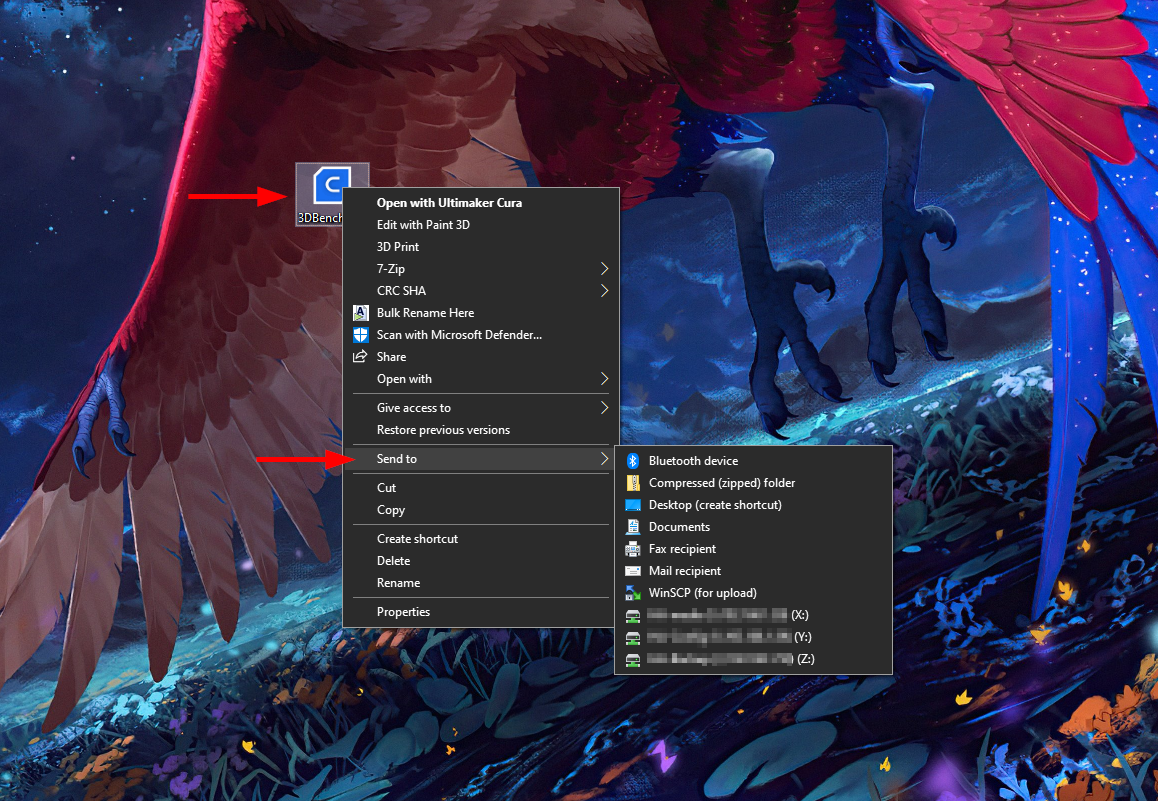
When you right-click a file in File Explore you have a Send to sub menu.
Shortcuts for your favorite editor, folders on your system, e-mails - You name it!
This short guide will show you how to get the most out of the Send to function in Windows 10.
When you right-clicks a file you gets access to the Send to menu.
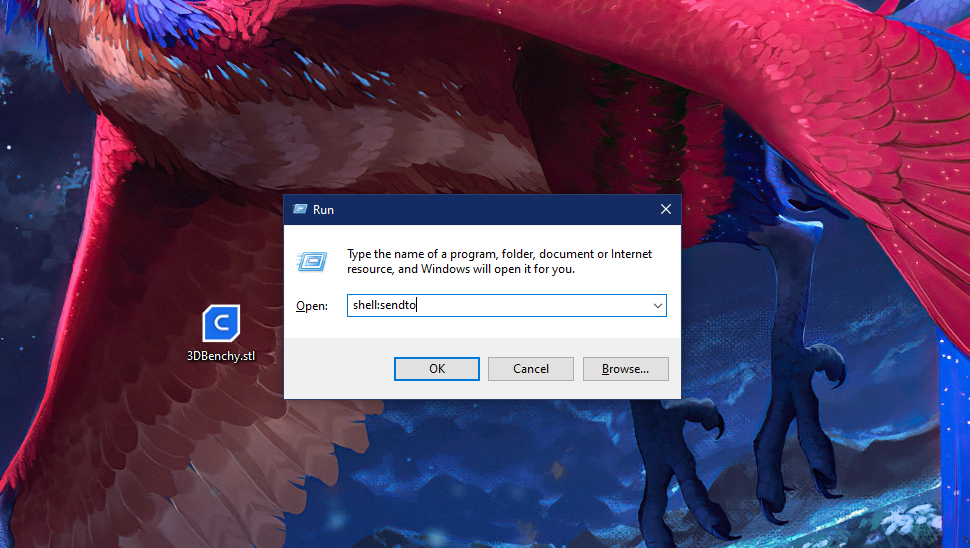
Hold down the windows key on your keyboard, then press the R key.
Type the shell:sendto into the run dialog box.
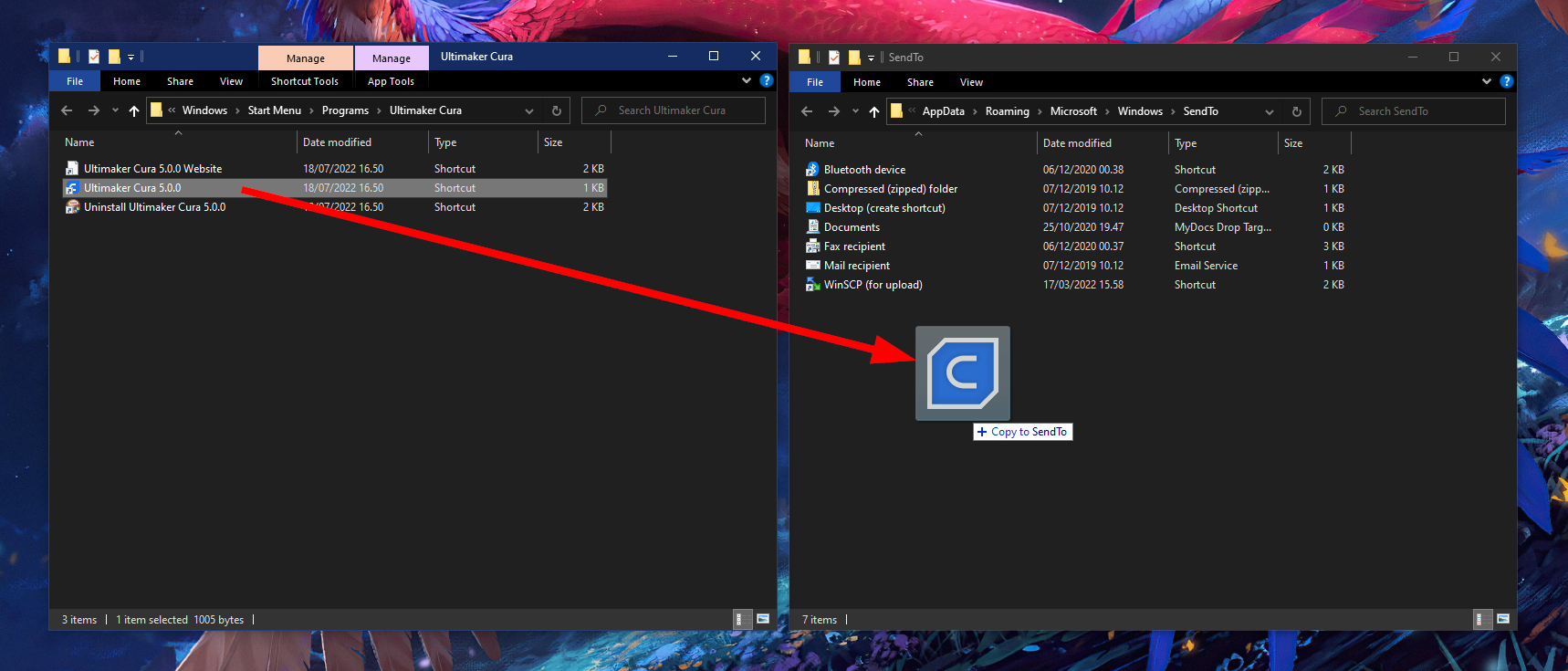
Now all you need to do is create your shortcuts in this directory.
You can click and drag apps to the Start up folder - Either from the start menu, desktop or as here from the start menu content folder at C:\Users\USERNAME\AppData\Roaming\Microsoft\Windows\Start Menu.
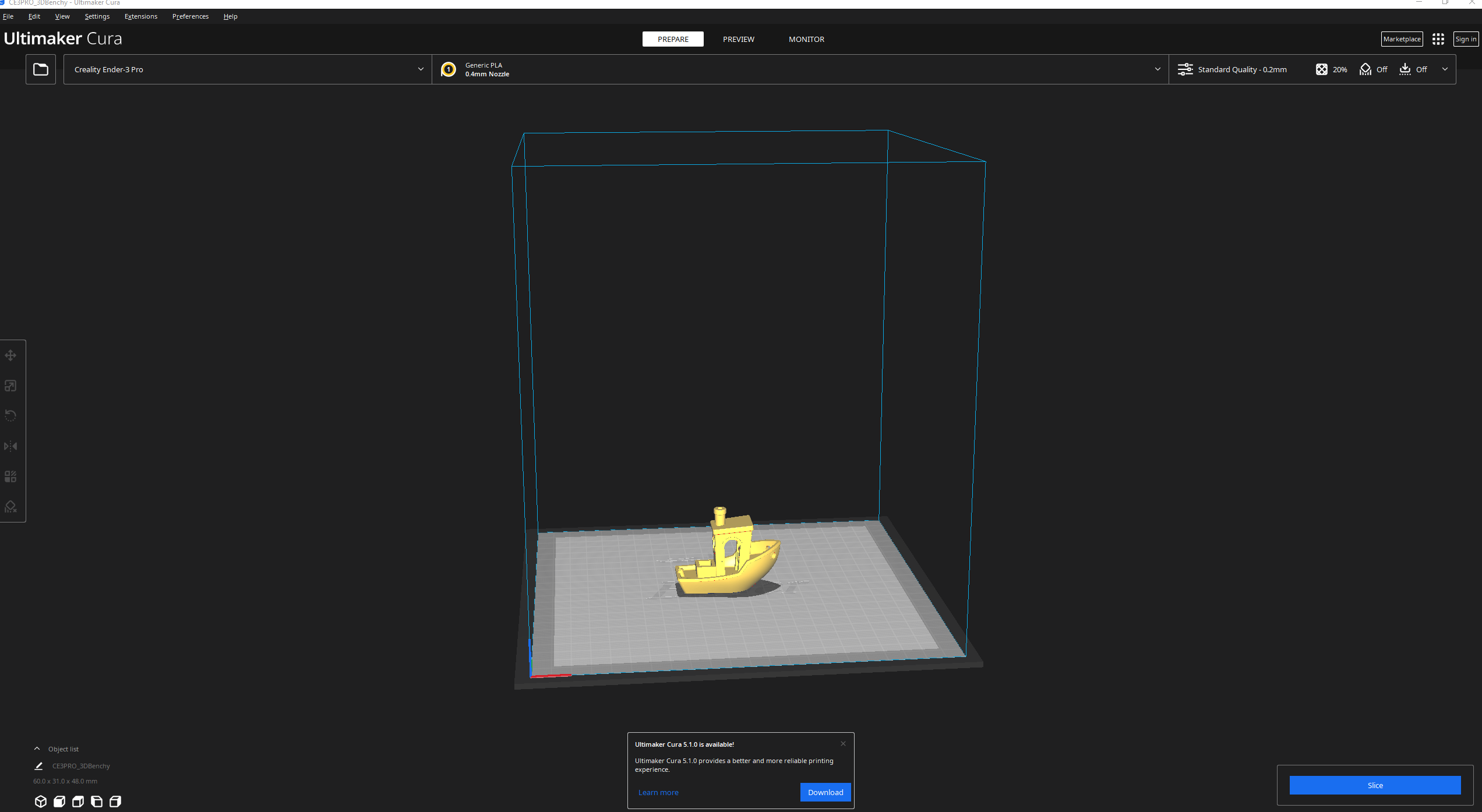
Now you can simply right-click a .STL file and send to Ultimaker Cura.
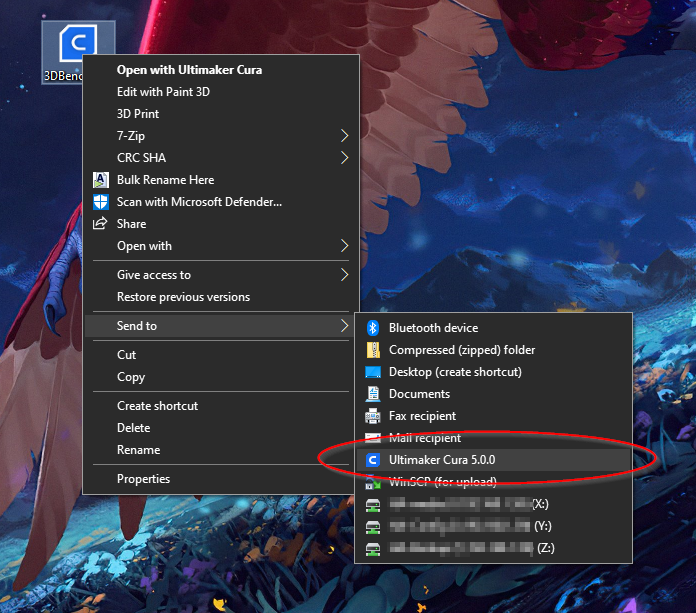
And just like that the .STL file opens up in Ultimaker Cura - Yay! 🎉
That’s it! 💪🏻
Short simple way of getting more out of the Send to function in Windows.